Web Search
FlowDown offers two web search modes: pre-processing for models without tool-calling, and tool-calls where the assistant invokes web_search directly. When your model understands tools, turn on both Web Browsing and Tools so it can plan and cite on its own.
Enable Web Search
- Go to Settings → Tools → Web Search or toggle Web Browsing above the composer.
- For tool-capable models: turn on both Web Browsing and Tools. FlowDown skips pre-planning and lets the model call
web_search. - For models without tool-calling: leave Tools off and enable Web Browsing. FlowDown asks the auxiliary model to decide and draft queries.
Configuration Guide
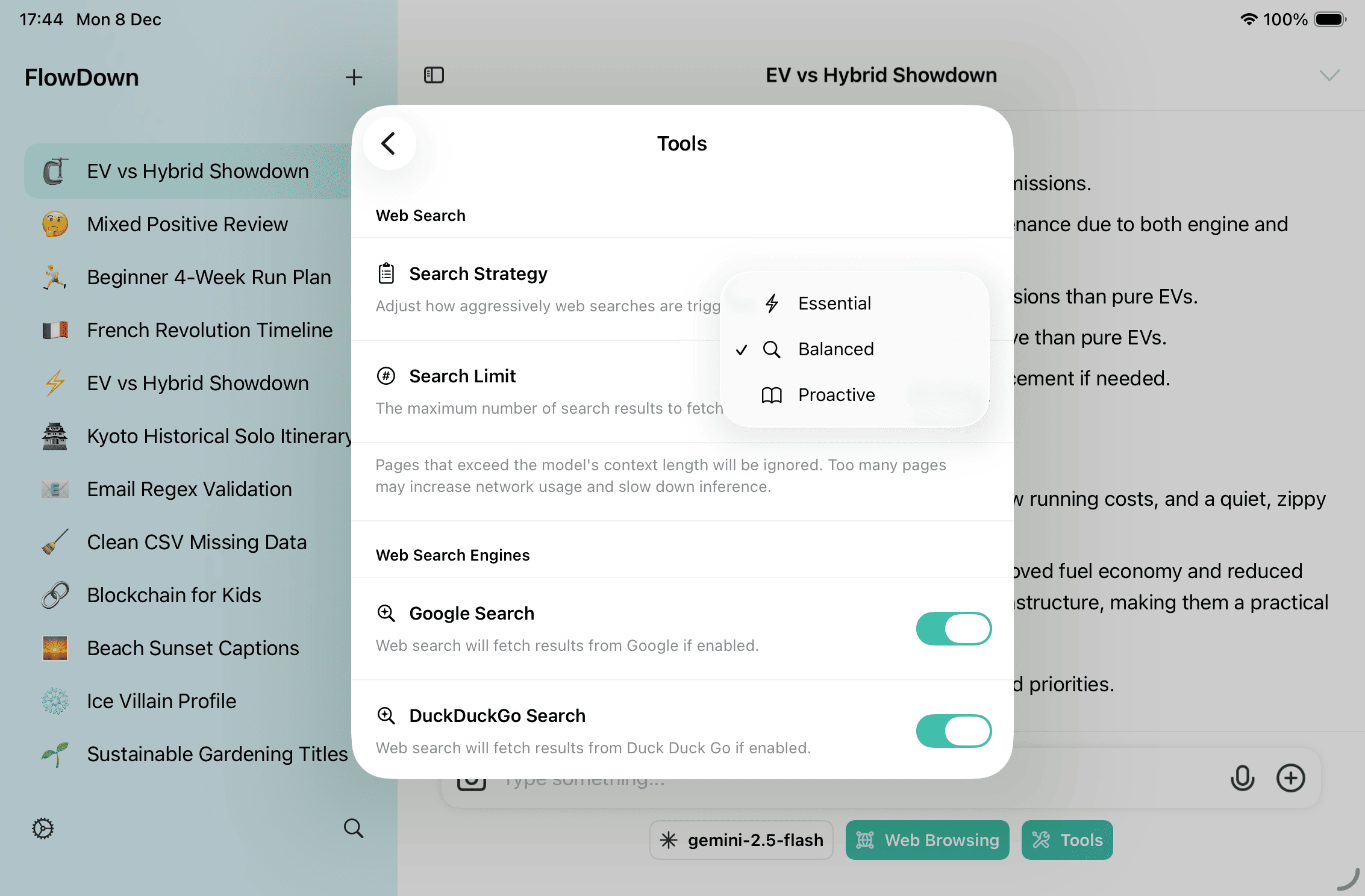
- Search Strategy (Essential / Balanced / Proactive): Essential searches only when needed; Balanced balances frequency and speed; Proactive searches aggressively for more coverage. Higher sensitivity can add latency, and lower sensitivity may miss fresh info.
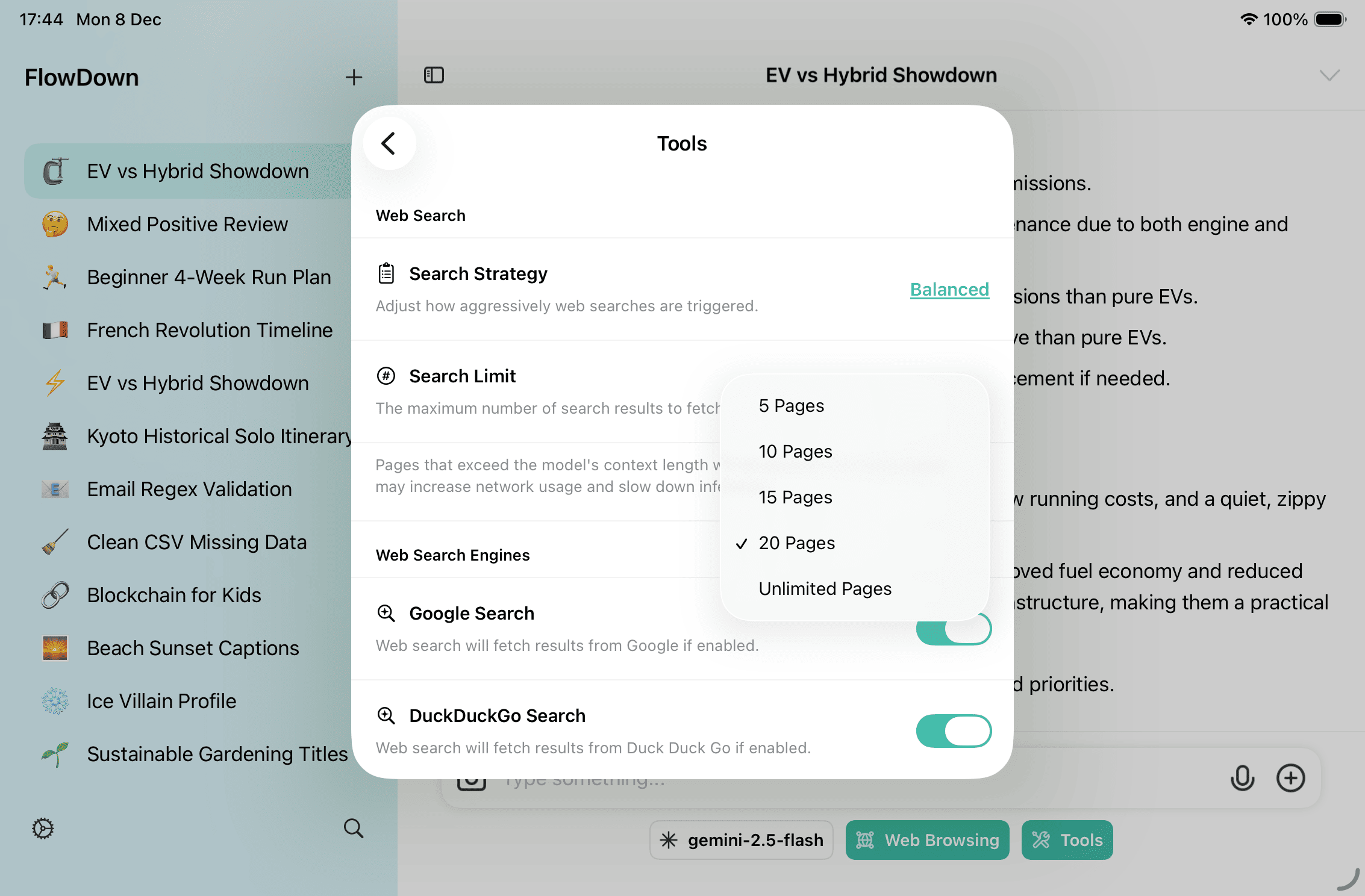
- Search Limit (5/10/15/20/Unlimited pages): shared across all queries in one message. Pages beyond the context budget are dropped to prevent overflow.
- Web Search Engines lets you toggle Google / DuckDuckGo / Yahoo / Bing. Keep at least one on; if all are off, FlowDown automatically falls back to Google.
Execution Flow
Pre-processing mode (Tools off)
- Context collection – Last five user/assistant turns plus attachment text.
- Query planning – Auxiliary model applies the Search Strategy prompt and returns XML with
search_requiredand up to three queries (2–25 characters, in the user’s language). Ifsearch_requiredis false, FlowDown posts a “no web search needed” note. - Failure handling – If no queries are produced, FlowDown replies that it cannot generate search keywords and skips browsing.
- Retrieval – ScrubberKit + URLSReranker fetch per query (keeps four results per host) and honor the per-message limit, streaming sources/sites/result counts.
- Attachment injection – Results are shuffled, converted to numbered
web_documentattachments, and appended before the model answers. Empty results raise “No web search results.”
Tool-call mode (Tools on)
- When the model calls
web_search, FlowDown runs the same ScrubberKit pipeline and streams progress in the status panel. The tool response includesweb_documenttext; if nothing is found, it returns “Web search returned no results.”
Use Cases
- Track fast-moving news or release notes.
- Look up pricing, availability, or policies that change frequently.
- Enrich domain knowledge with recent publications or documentation.
- Capture structured data (tables, lists) from public pages.
Best Practices
Ask Effectively
- Provide context, e.g., “Find recent reviews for the latest FlowDown release.”
- Add time ranges or preferred sources, e.g., “Look for docs updated after October 2025.”
- Combine with attachments or notes and ask the assistant to cite
web_documentIDs with[^n].
Search Tuning
- Use Balanced or Proactive for dynamic topics; choose Essential for speed.
- Keep at least one engine enabled; more engines improve recall but add latency.
- Raise Search Limit for sparse or long pages; lower it to conserve bandwidth.
- Review URLs and snippets in the reasoning panel before trusting an answer.
Privacy Notes
- FlowDown only sends the minimal query terms to providers and does not append personal identifiers.
- Scrubbed content stays in your local conversation history and syncs via iCloud only if enabled.
- Disable web search entirely if your compliance requirements forbid contacting external providers.
Implementation Details
- Query generation uses the auxiliary model with the Search Strategy prompt (
Model.Inference.SearchSensitivity). - Retrieval uses ScrubberKit plus
URLSRerankerand respects engine toggles and search-limit settings (ScrubberConfiguration). - Tool-call entry point:
MTWebSearchToolruns the pipeline, and the conversation layer wraps results withformatAsWebArchiveso the model can citeweb_documentIDs.