Model Vision
Overview
FlowDown supports visual understanding through local MLX or cloud vision models and can auto-generate descriptions, OCR, and QR results for text-only models. Images are resized to ~1024 px and stripped of EXIF by default when Settings → Editor → Compress Image is on.
Quick Start
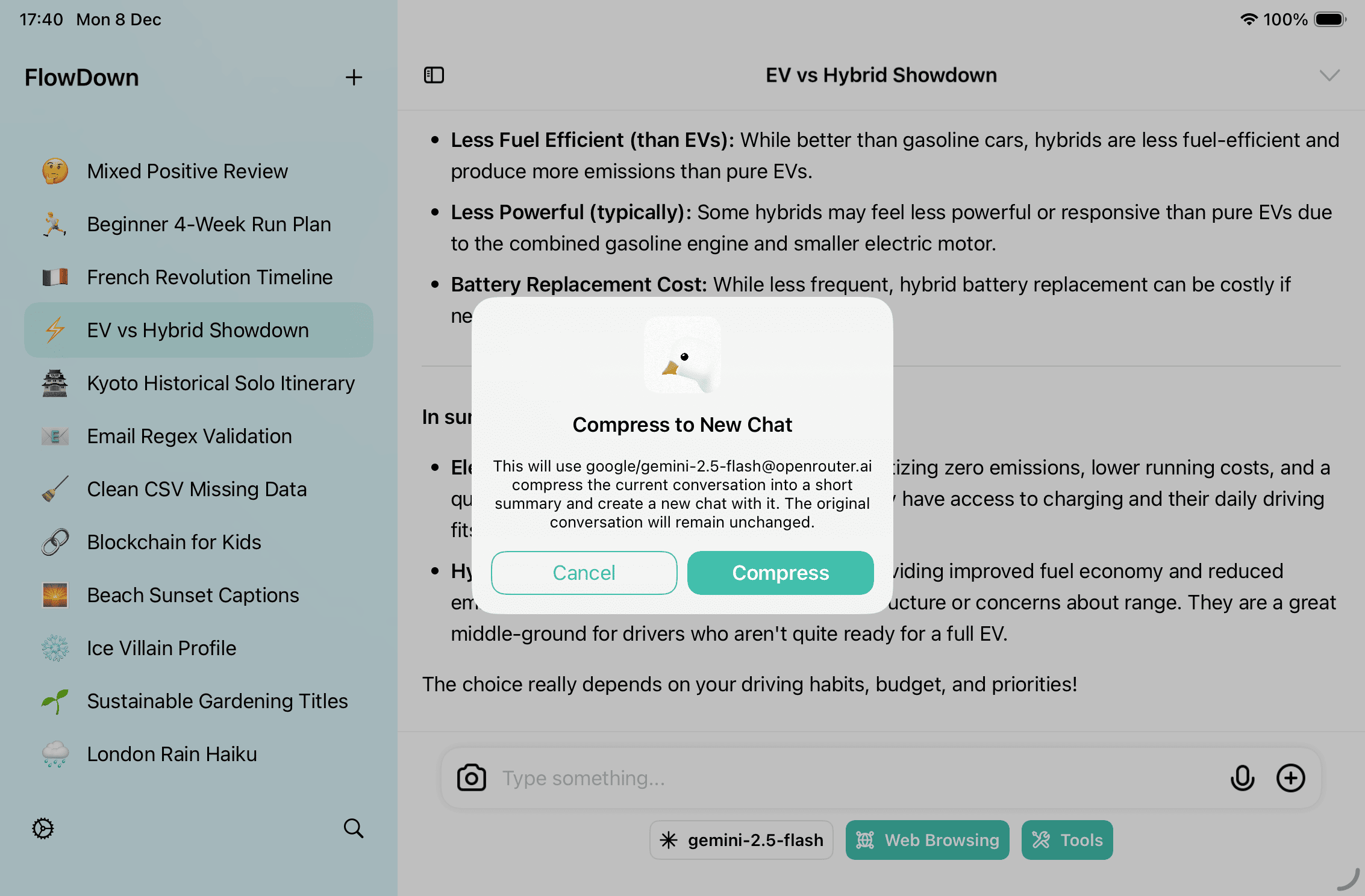
- Click the + beside the composer, or drag/paste files into the input box.
- On iOS/iPadOS, choose Take Photo, Photo Library, or Files; on macOS, pick any system-supported file.
- Send your question/instruction and wait for the analysis result.
Thumbnails appear above the composer; tap or hover to preview, rename, or remove attachments.
Configuration Checklist
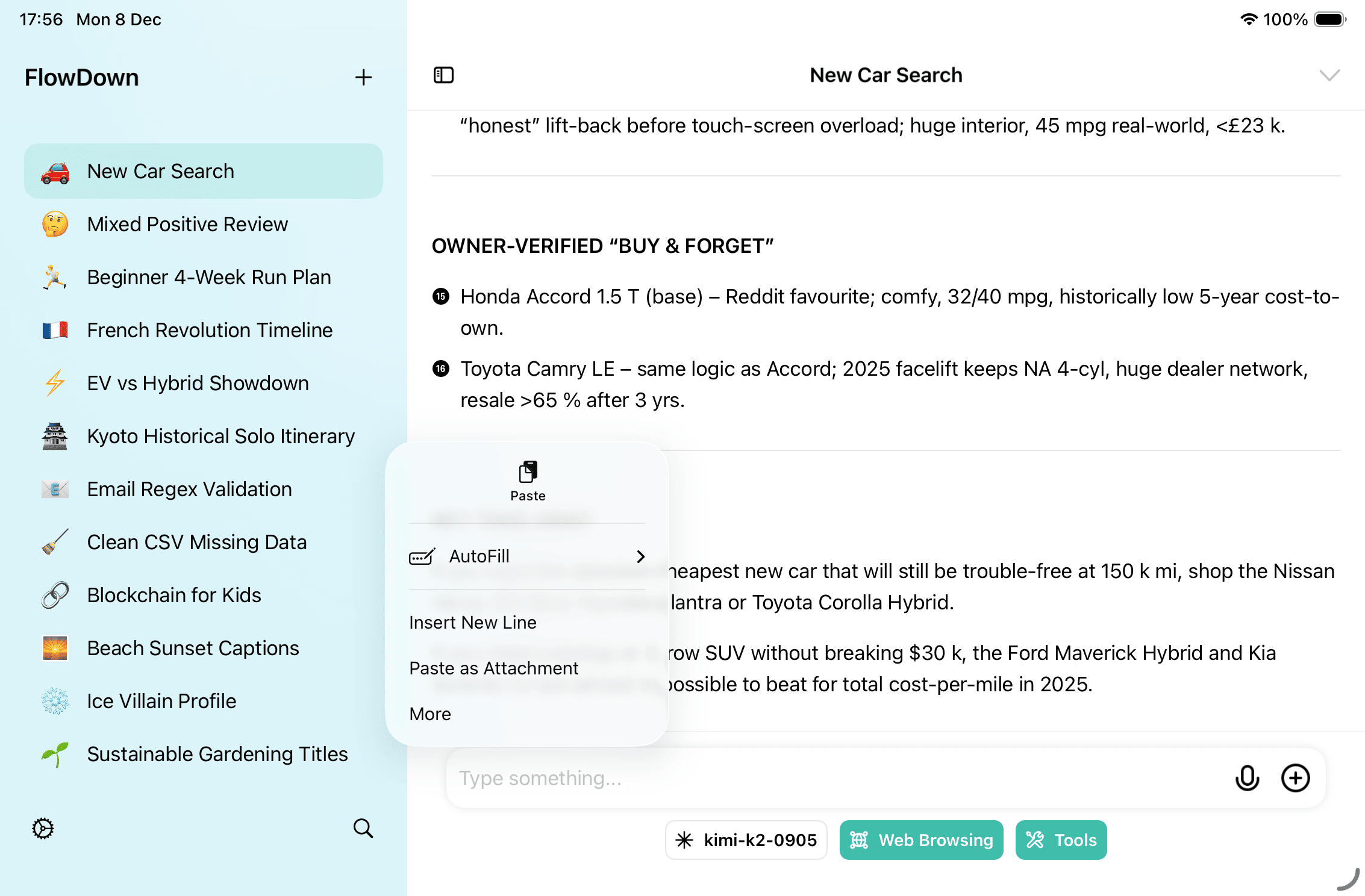
- Enable Vision capability: Turn on Vision under Settings → Model (local) or on the cloud model edit page. Forcing Vision on unsupported models will fail.
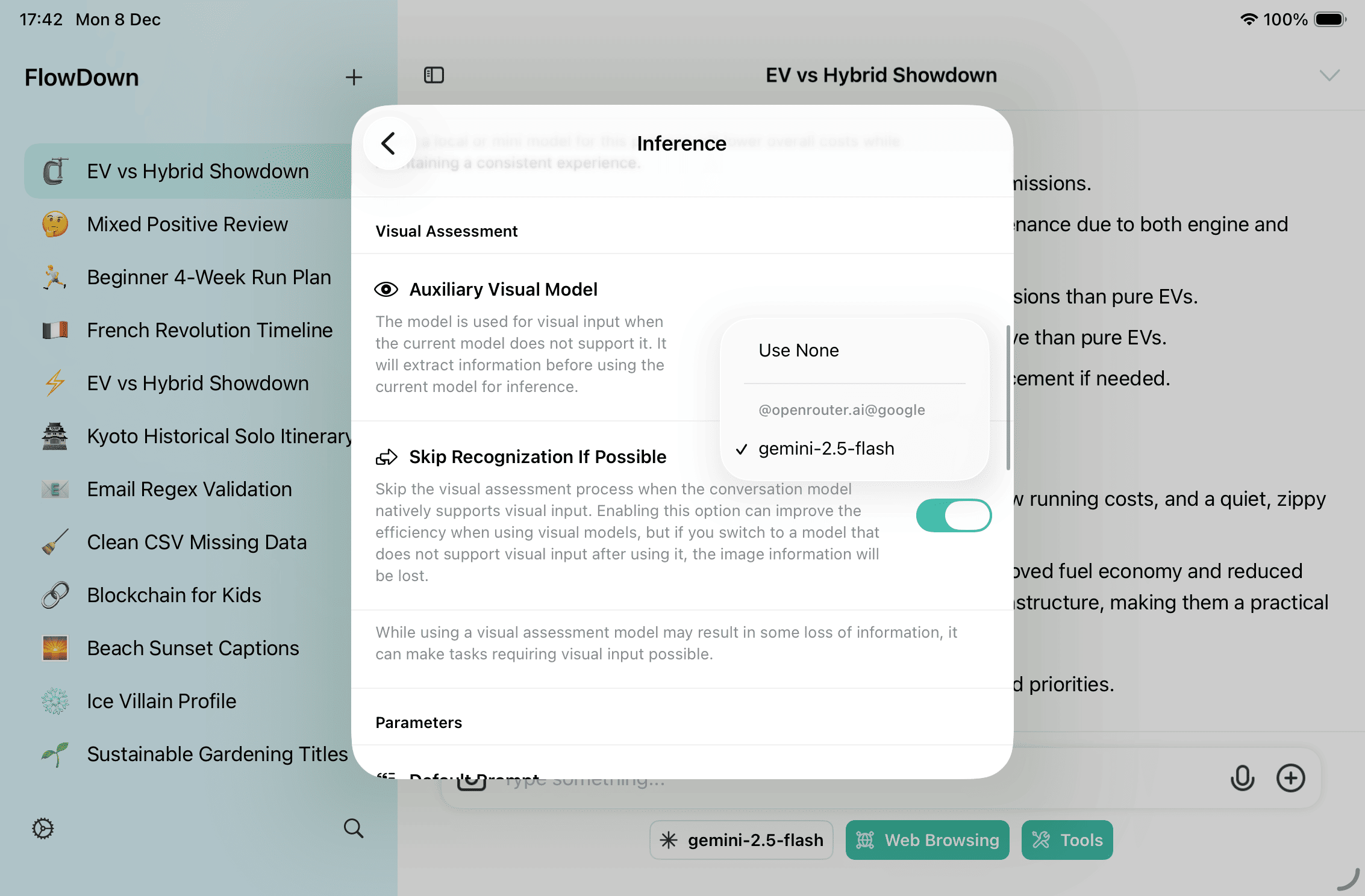
- Auxiliary Visual Model: Settings → Inference → Visual Assessment → Auxiliary Visual Model. Used when the active chat model lacks Vision or when you need text fallbacks (descriptions/OCR/QR).
- Skip Recognition If Possible: Settings → Inference → Visual Assessment, default on. When the chat model has Vision, skipping sends the raw image; disable if you need OCR/backups or may switch to a text-only model.
- Compress Image: Settings → Editor → Compress Image, on by default to shorten uploads and remove EXIF data.
How It Works
Dual Paths
- Vision models: receive the image plus any generated description.
- Text-only models: FlowDown calls the Auxiliary Visual Model to turn images into text before sending.
When Preprocessing Runs
- Triggered when an image lacks a manual note and either:
- the chat model does not support Vision, or
- Skip Recognition If Possible is turned off.
- Skipped when the chat model supports Vision and the skip toggle is on.
Processing Steps
- Generate a scene description
- Multilingual OCR extraction
- QR code detection and decoding
Results are written to the attachment’s text representation and persisted (non-ephemeral). Images are always compressed and EXIF-stripped. If no Vision-capable Auxiliary Visual Model is configured and the chat model is text-only, the image will be skipped.
Delivery to the Conversation
- Vision chat model: sends the raw image plus description.
- Text-only chat model: sends text representation only; if empty, the attachment is omitted.
Prompting & Verification
- Be explicit: “Summarize this whiteboard,” “Compare these two screenshots,” or “Convert the table to CSV.”
- Reference filenames, e.g., “In invoice.png, what is the payment due date?”
- Use the message menu → Raw Data to confirm
[Image Description],[Image Optical Character Recognition Result], and[QRCode Recognition]. - If results look off, ask the model to re-check attachments or add more context and resend.
- Delete attachments from the message menu if you don’t want them kept.