Basic Usage
FlowDown provides an immersive chat interface, supports local models, and can sync data via iCloud. This guide combines the first-chat steps with everyday usage.
Start your first conversation
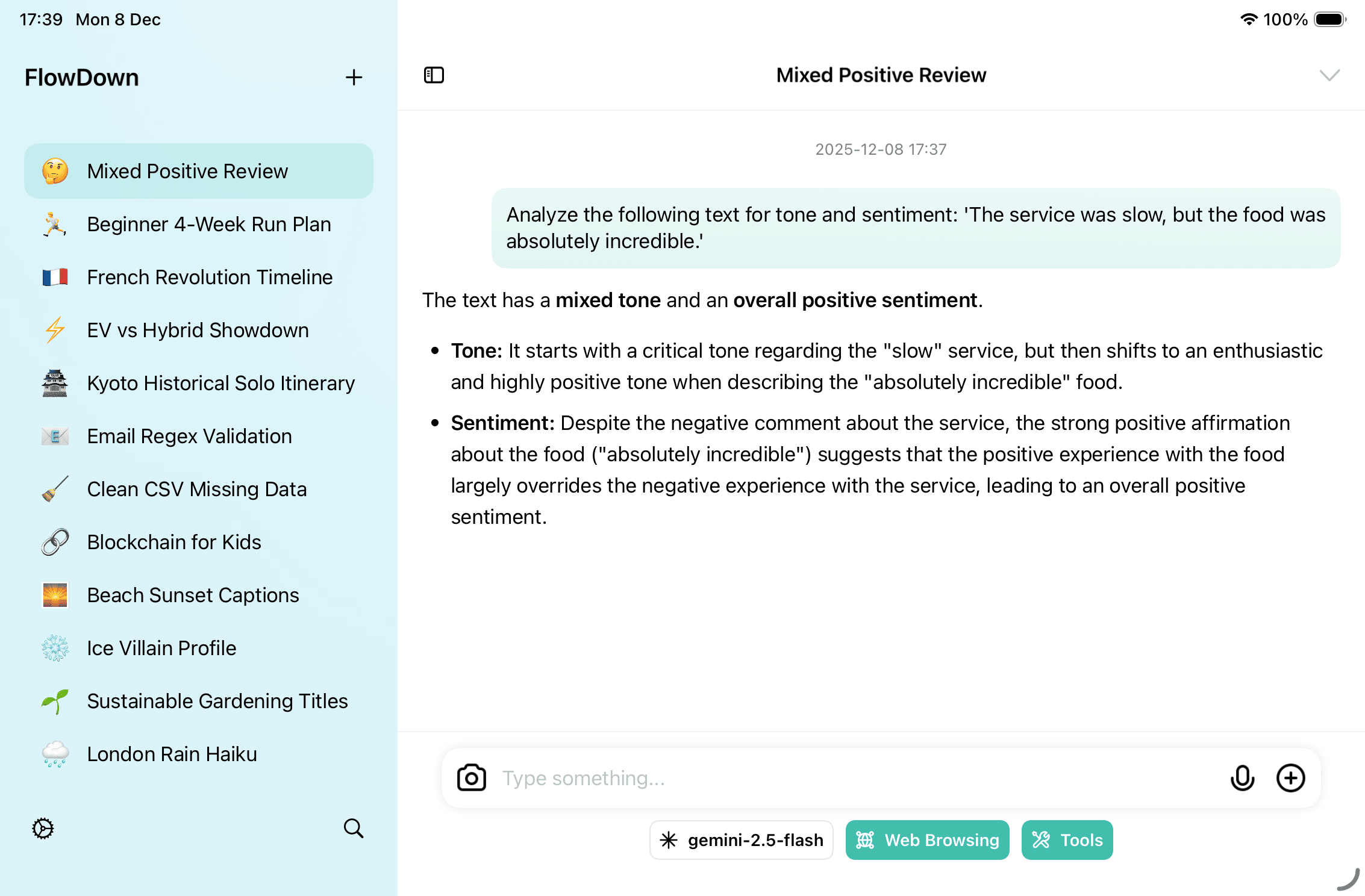
- Open FlowDown and click New Conversation in the sidebar; the composer appears at the bottom.
- Choose a model below the composer (local MLX, cloud templates, Apple Intelligence, or the free quota for new users).
- Above the composer, toggle Tools (calendar/location/memory/MCP) and Web Browsing as needed; enable Memory to write highlights to long-term memory.
- Type your message.
Shift + Enteradds a new line. Drag files to attach text/Markdown, PDF, PNG/JPEG/WebP/HEIC, or audio (m4a/wav; others auto-transcoded). - Press
Enter(or tap send) to send. Stop a reply via the stop button or the conversation menu in the top right.
Manage conversations
- The list on the left shows all conversations. Click to switch; on touch devices you can swipe, and right-click/long-press to open the quick menu.
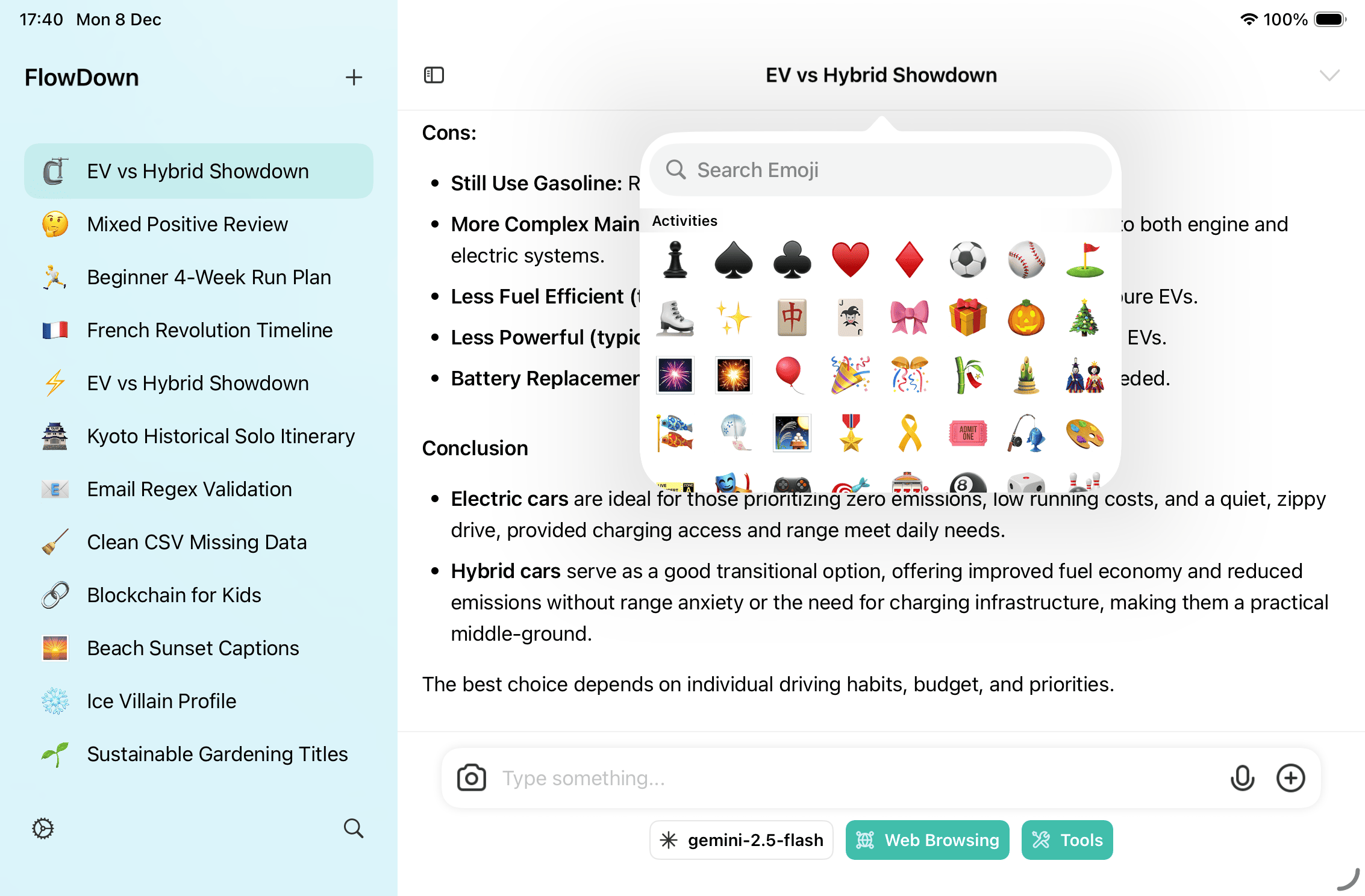
- The assistant auto-generates a title and icon after the first reply. Use the quick menu to Rename or Change Icon.
- Use Copy to create a branch (Fork); use Archive to hide a conversation without deleting data.
- To adjust tools, web browsing, or system prompts for a conversation, open Conversation Settings from the quick menu.
UI & rendering
- Replies support full Markdown (tables, code blocks, quotes). Switch to a classic list layout via Settings → Conversation UI if preferred.
- In the message menu, Raw Data shows the full prompt, including system instructions and attachment context; you can also copy/export/archive here.
Cross-device sync
FlowDown stores data locally and can optionally sync through CloudKit.
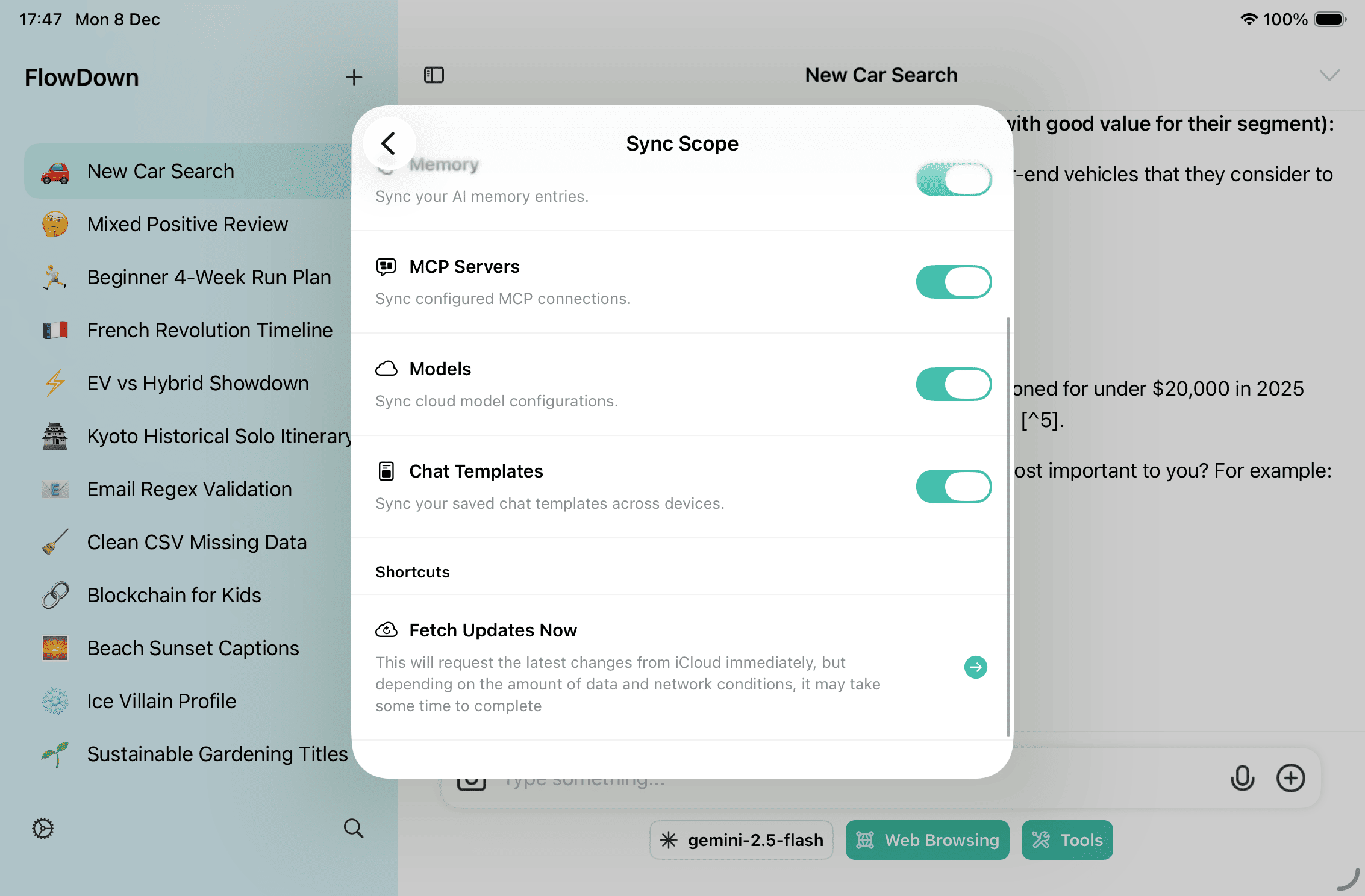
- Turn on Settings → Data Control → iCloud Sync on each device. The sidebar shows the latest sync status and pending changes.
- After adding a new device or resolving conflicts, run Full Refresh from iCloud to keep data consistent.
- You can export a backup anytime via Settings → Data Control → Export Workspace. Restoring merges conversations, models, and attachments.
Next steps
- Use built-in tools: see Tools and Web Search.
- Explore scenarios such as Calendar Workflow.
- Tune inference and models in Cloud Models Setup and Inference Configuration.